 Barkley
Options and Settings
Barkley has its own Settings page (the Settings link on the panel’s first page). The
app’s options (Settings → Apps → Barkley → Configuration) give the starting values; once
you save the Settings page, it wins. Standalone, the BARKLEY_* variables play the part
of the options (see Standalone).
The Settings page
| Setting | Default | Meaning |
|---|---|---|
| Where Home Assistant runs | Only my home network | Or “A shared or work network”, or “Reachable from the internet”. It changes the Exposure reading: up by a quarter on a shared or work network, up by half when reachable from the internet. Reachable from the internet also changes what new sniffs find: pages that work without a login, pages other websites may call and webhooks count one level higher, and a known vulnerability in a library keeps its rating instead of being medium at most, and is critical when CISA lists it as exploited in the wild, automatable and of total impact (see Where Home Assistant runs). A stored scan keeps the choice it was made with. Signs of malicious behavior count the same either way. A hint under it says whether Home Assistant has an external URL set. |
| Minor items | Hide | Hide or Show the items that touch no password or login and change nothing, such as listing user names. Hidden items are counted on each app’s page, with a link to show them. They never change the readings. See Minor items. |
| Build tool known to be malware | 2.5 | How much a build tool listed as malware counts toward Threat: 2, 2.5 or 3 (7 and up is found, anything under is possible). It runs on the developer’s machine, not in your home, but it could change what ships. Changes the reading of stored scans too. |
| Quiet projects | 12 months | An app’s page and card say when nothing has been pushed to its project on GitHub for this long: 6 months, 12 months, 2 years, 3 years, or Never say it. It changes no reading. |
| Auto-sniff | On | Sniff installs, updates and offered updates, and notify. |
| Send notifications to | Home Assistant’s bell | Or the bell and a notify service, only the notify service, or Disabled. With Disabled nothing is sent, and every result is still listed under Auto-sniff activity and on the app’s page. Send a test notification is beside it. |
| Notify when | Every result | Or “Exposure medium or high, or signs of malicious behavior”, “Exposure high, or signs of malicious behavior”, or “Only signs of malicious behavior”. A sniff that didn’t finish or couldn’t run always notifies, unless notifications are disabled. Every result is still listed under Auto-sniff activity and on the app’s page. |
| AI | Off | The AI Task entity for explanations. Only as good as the model you pick. |
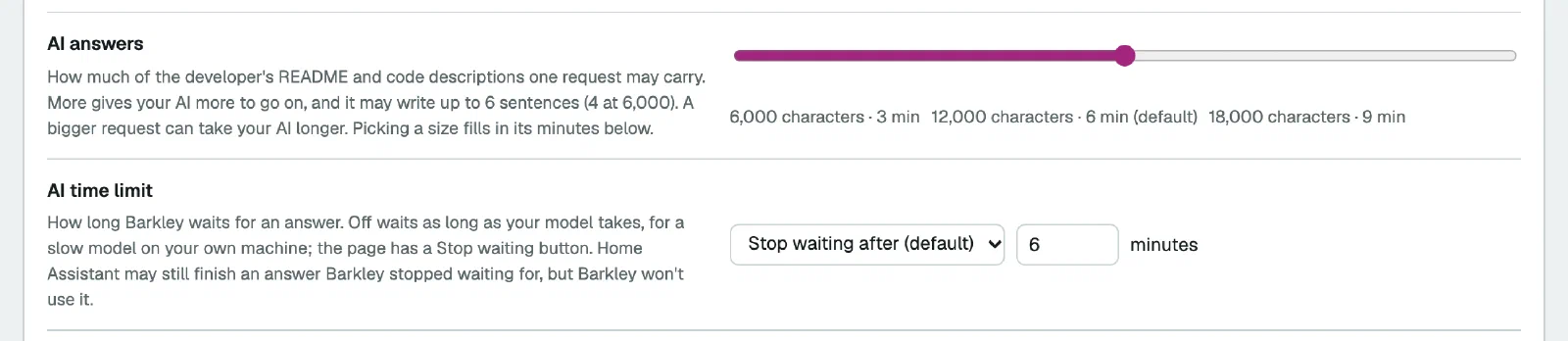
| AI answers | 12,000 characters | How much of the developer’s README and code descriptions one request may carry: 6,000, 12,000 or 18,000 characters, with one code description per 1,000 characters. The AI may write up to 4 sentences at 6,000 and up to 6 above. A bigger request can take your AI longer. Picking a size fills in its time limit below (3, 6 or 9 minutes). |
| AI time limit | Stop waiting after 6 minutes | How long Barkley waits for an answer (1 to 60 minutes), or “Wait as long as it takes” for a slow model on your own machine. While it waits, the page has a Stop waiting button. Home Assistant may still finish an answer Barkley stopped waiting for, but Barkley won’t use it. |
| AI mode | Explain and read code | Explain only: the AI explains what Barkley found. Explain and read code: it can also read the code around one item when you ask, and sum up what the developer’s README and code descriptions say. See AI explanations. |
| Parallel scans | 2 (app), 1 (standalone) | How many apps are scanned at the same time (1 to 4). Another scan starts only while there’s memory for it (Memory for scans); otherwise it waits. Keep it times Semgrep jobs at or below the CPU cores. |
| Semgrep jobs | 1 | Inside one scan, how many files Semgrep reads at once (1 to 4). Helps apps that ship many files, such as cards split into chunks. Barkley’s passes over the code still run one after another. Each extra job needs its own memory. |
| Published libraries | On | Integrations only. A JavaScript file of 64 KB or more that is byte for byte a file of a well-known npm package (that version at least 30 days old, 10,000 downloads in the last week, no malware advisory) isn’t read as code; it’s listed as a library and checked for advisories. Barkley sends the SHA-256 of up to 40 such files per scan to jsDelivr, and the package name to npm. No answer, an error or a rate limit means the file is read. Off: every file is read and nothing is asked. Applies to the next sniff. |
| Cache of code already read | 1 GB | What Barkley found in each file, kept by the file’s content (and its path in the app), so a file it has read before isn’t read again: most of an integration’s files when a new release comes out, or everything on Sniff again. Kept under /data/cache/scan-cache; the least recently used answers go first when it’s full. New rules or scanner tools start a fresh cache. Only Barkley writes there, and an answer is kept only from a run that finished (a timeout is always read again). An app’s page says how many files came from it. Off: every file is read every time. |
| Versions kept per app | All of them | Each update of an installed app adds a scan of the new version. Or the last 20, 10, 5 or 3 versions: older versions’ scans are deleted once a day. The last versions are the ones sniffed most recently. The installed version and a waiting update are always kept, with every scan of a kept version. Apps that aren’t installed are deleted after 7 days either way. The row shows how much space the scan store uses. |
| Memory for scans | Auto | How much memory scans may use at once. Barkley counts 1.5 GB per scan. Auto: free memory must cover that for every running scan plus a reserve (2 GB on a machine Home Assistant shares, 0.5 GB inside a container with its own memory limit). Or a fixed 2 to 16 GB: as many scans as fit, never past a container’s limit, never below the Low memory floor. |
| Low memory | 1 GB free | Scans don’t start when less than this is free, so a scan can’t push Home Assistant out of memory. Or 0.5 GB free, or Scan anyway: Home Assistant may slow down, and the system may stop a scan or another program to free memory. |
| GitHub token | none | See below. |
The page has two sections, Readings and Checking and notifications. Each has Reset to defaults. Some settings have a How this works line that opens a longer explanation. Standalone, the page also has Barkley’s Home Assistant token and Token rotation (see Standalone).
Gone in 0.15: Paranoid mode (now Minor items), Powerful no threat, Pages without a login, Hidden usage reporting, When an accepted finding changes, and Ask again. They changed the score or belonged to reviews, and both left the panel.
GitHub token
Optional. Without one GitHub allows 60 requests an hour; with one, 5,000. A scan makes
about 10 to 20. The token needs no permissions. Create token on GitHub on the
Settings page opens GitHub’s new fine-grained token page with a name, a description and
a one-year expiry (365 days, the longest GitHub’s form takes) filled in. Leave Repository access on Public
repositories, add no permissions, click Generate token, and paste the token on
Barkley’s Settings page. (By hand: GitHub’s Settings → Developer settings → Personal
access tokens → Fine-grained tokens → Generate new token.) GitHub can’t hand the token to Barkley itself, and Barkley can’t renew it, so make a new one before it expires. Barkley keeps it in its own file next to its database (never in the
database) and never shows it again; Remove deletes it. A token in the app’s
github_token option still works, and one saved on the Settings page wins over it.
The app’s options
| Option | Default | Starting value for |
|---|---|---|
exposure | local | Where Home Assistant runs (public: Reachable from the internet) |
jobs | 1 | Semgrep jobs |
parallel_scans | 2 | Parallel scans |
github_token | empty | GitHub token |
ai_entity | empty | AI |
ai_mode | deep | AI mode |
auto_scan | true | Auto-sniff |
notify_target | empty | Send notifications to |
There’s no light or dark setting, because the panel follows the mode of your Home Assistant profile.