 Barkley
An app's page
Every scan has a page, the app’s sniff report. Each block on it is tagged with where its sentences come from:
- Barkley’s scan: what Barkley read in the code and the project’s public data.
- The developer’s words: text the developer wrote, quoted with its file and lines. A description in the code (shown as “The developer’s note”), or a README or funding-file mention of a site.
- AI and AI inferred: text from the AI you picked. See AI explanations.
The developer’s words, and the AI’s summary of them (“AI inferred”), are never shown beside a found or possible threat. On a page with a found threat there are none at all. Nothing from the developer or the AI changes a reading.
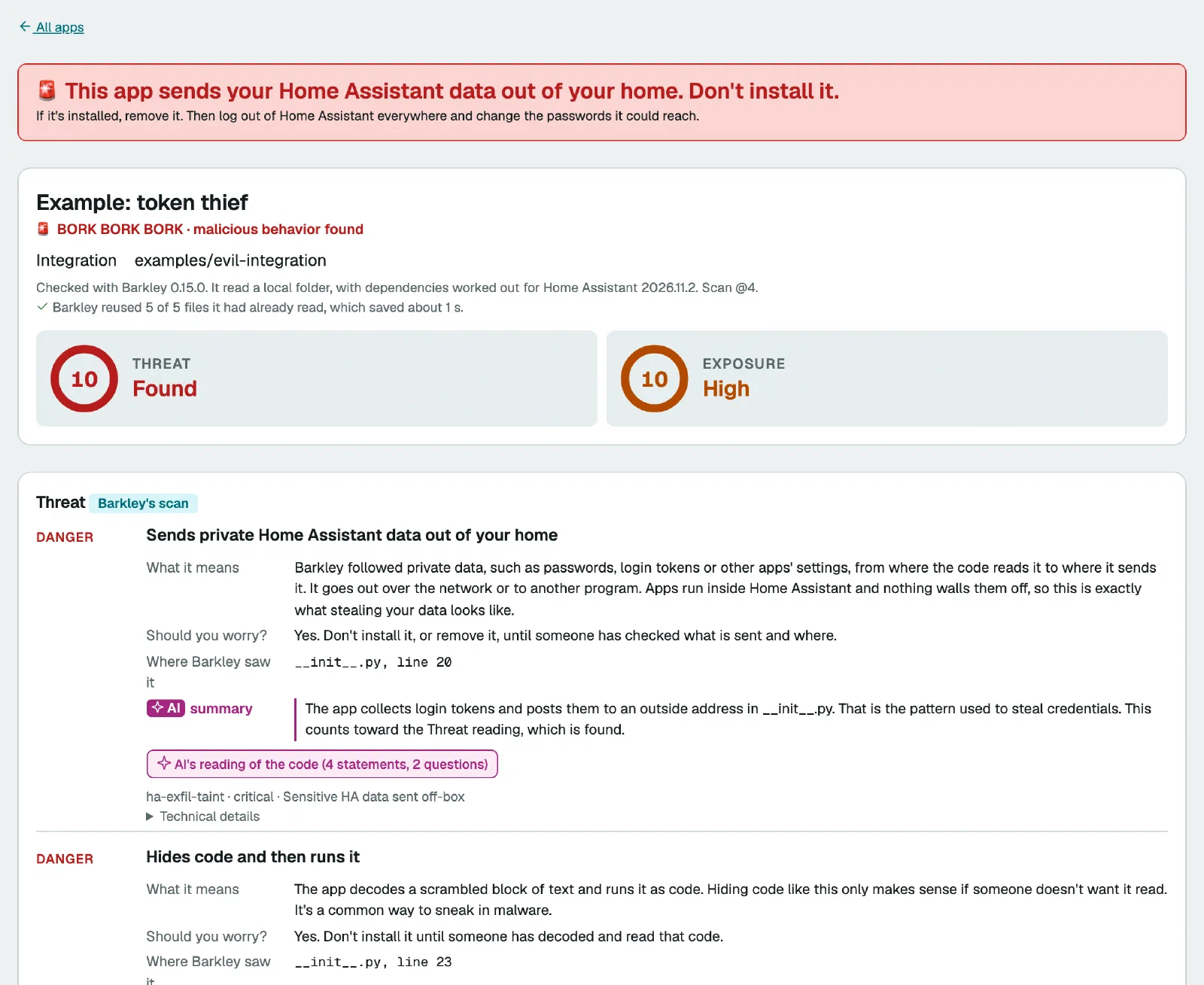
From top to bottom:
- The head. The app’s name, then the verdict on its own line (🦴 Good Boy, 🐾 Needs training, 🦮 Needs a leash, 🐕 Grrrrr or 🚨 BORK BORK BORK), then one row of facts: the kind of app, the version and the day it was released, a link to the repository on GitHub, its stars, the downloads of the release when GitHub counts them, the last push to the project, the year the project started, and a link to its security habits. A chip says when a project is archived or has gone quiet (Settings → Quiet projects). None of these is scored. Under them: which version of Barkley checked it, what it read, how many files came from the cache, and a fold with any test scripts Home Assistant never loads, which don’t count toward the readings. When the Marketplace has removed the app, the page says so.
- The two readings, Threat and Exposure, as dials in the head. See What gets checked and how the readings work.
- Threat: the signs of malicious behavior Barkley found, each in plain words with where in the code it is. When there are none, it says what Barkley looked for and didn’t find.
- Exposure: the reasons for the reading in words, then each page that opens without logging in to Home Assistant, by the address it answers on, with its class and place in the code. An address the code builds while it runs is said to be so. The last line says which “Where Home Assistant runs” choice the reading is based on.
- In short: a few sentences built from the scan by fixed rules (no AI). An AI summary, if you asked for one, sits here, tagged AI. After an AI request in the Explain and read code mode, and only when no threat was found or possible, The developer’s description follows: sentences tagged AI inferred.
- Privacy notes such as telemetry, analytics or unencrypted connections. They never change a reading. In the Explain and read code mode a note links to the AI’s reading of the address or port behind it.
- What Barkley found: everything else the scan reports, grouped by kind, with what it means and where in the code it is. An item that adds to the Exposure reading is marked Exposure, with a link up to that box; the rest is context. “Technical details” under an item has the rule name and the evidence. Several calls of the same kind in one Python function are one item, and a websocket command only an administrator can run says so. Under each item: Report a false positive, which opens a new public issue on Barkley’s GitHub with the versions, the rule, the file and the line filled in; you write why it’s wrong and submit it yourself. Minor items are left out unless you show them (a link on the page, or Settings → Minor items).
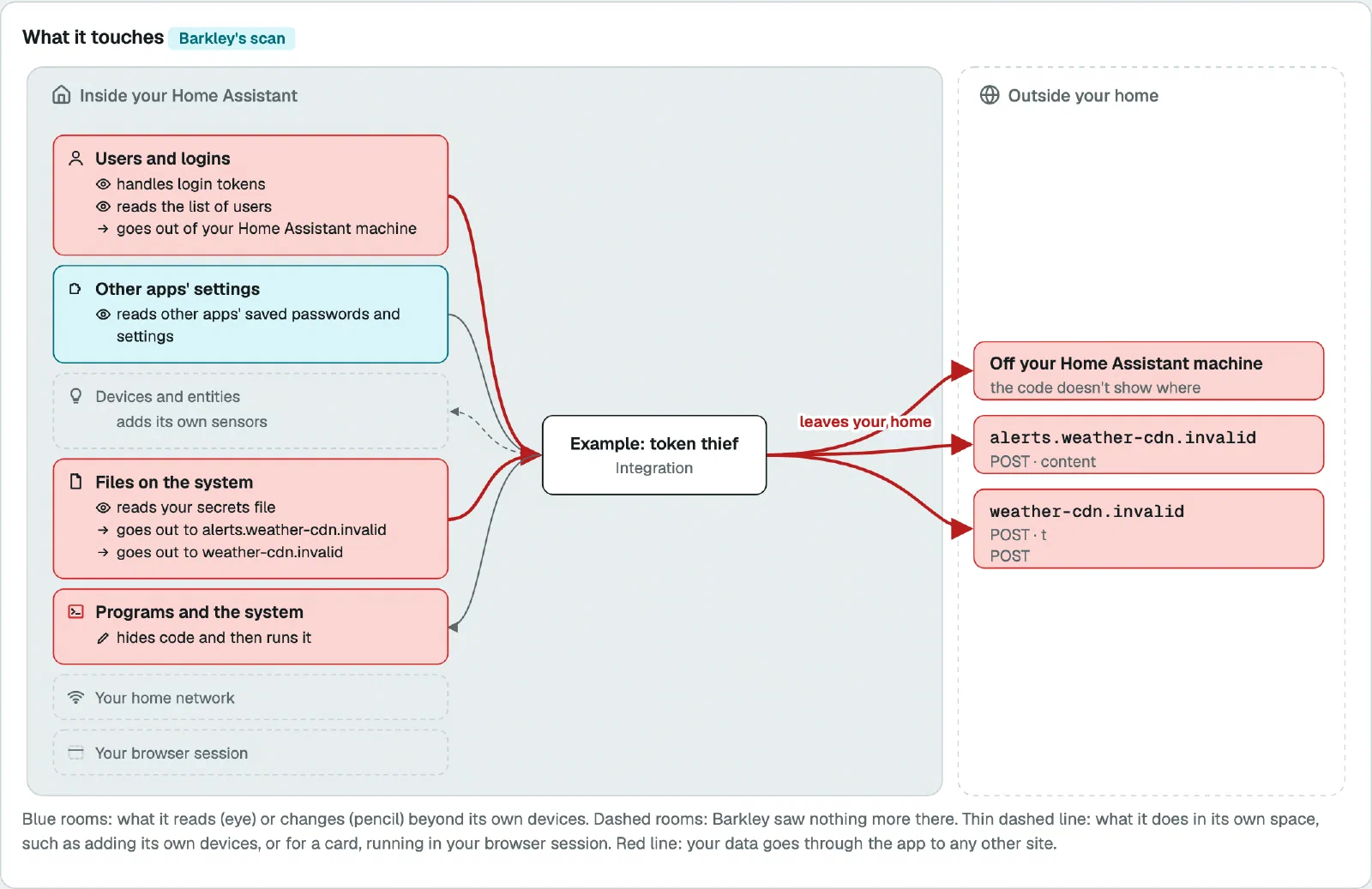
- What it touches is a picture. Inside your Home Assistant are seven rooms, the same for every app: users and logins, other apps’ settings, devices and entities, files, programs and the system, your home network, and your browser session. A room is blue when the app reads (eye) or changes (pencil) something there beyond its own job, and dashed when Barkley saw it do nothing there. What the app does in its own space, such as the kinds of entity it adds or its own storage file, is said in gray with a thin dashed line. Outside are the sites it sends requests to. A red line is a path Barkley found from your data to a site; to a site its own files link to, or one named like the app, the line is dotted gray. A purple line goes to where the login you gave this app is sent. A dashed box is an address you entered at setup (Barkley can’t tell whether it’s on your home network or the internet). Exposure is orange and points in: a door for each way in, and a strip on the app for libraries with known vulnerabilities. A dotted orange arrow is code from outside that runs here: from the site a card loads code from into your browser session, or from where an integration downloads Lua into Programs and the system. When that address comes from a server’s answer, the arrow starts at a dashed box linked to the site that answers.
- Where the login you gave this app goes: the login you entered when you set up the app (not your Home Assistant login), and any token it gets back, followed from what is sent, through the app’s own code or a library, to where it goes. It lists six places, then “and N more”. It’s context and doesn’t change a reading.
- Where it connects and Other addresses in its code: see below.
- What the developer’s disclosure.yaml says, when the repository has one: see below.
- Where its code comes from: see below.
- Environment variables it uses (integrations): which ones the code reads and sets, by name when the code spells the name out, whether it reads one it set itself, and whether it uses all of them at once.
- The developer’s security habits: whether the project runs security scanners in its GitHub workflows or before each commit (pre-commit, lefthook or husky hooks, and Ruff’s security rules when the project selects them), has Dependabot or Renovate and a SECURITY.md, how many dependency-update pull requests wait, and open issues that look security-related. This is context from public signs and never changes a reading. When every check is green, a gold star says A+ security habits. Only checks a workflow runs count toward the star, and a dependency-update pull request younger than 7 days doesn’t count against it.
- Everything it uses inside Home Assistant: the services, views and events it hooks into.
- History: every stored scan of this app, newest first, and the link to the technical report (raw JSON), which includes the capability score.
Where it connects
The sites Barkley read a request to, grouped: your home network, sites its files link to, sites named like the app, servers the developer runs, analytics and crash reports, and other sites. Checks and scoring says what puts a site in each group. Flagged sites and ports are listed here too. Other addresses the code only mentions, such as project and help links, are under Other addresses in its code: a site there is listed because the code names it, and Barkley didn’t see a request to it. (For an older scan without the requests, every site is under Where it connects.) A well-known service is named as a hint, and no address is ever sent anywhere to be looked up.
Each site is one line that folds open. A group shows five, then “N more”. Inside a site:
- the scheme, the port and whether the connection is encrypted;
- who runs it, when Barkley’s own list knows;
- the addresses, cut off at the
?, and where the code names them; - how the code sends requests to it: the method (GET, POST and so on), from how many places, and the names of what the call puts into the body, the headers and the address. For a card, also “Loads map images” when its map pictures come from there. Values are never recorded. GET or POST alone doesn’t tell you what is sent, because a GET can carry data too, in the address or in a header;
- chips when the login you gave this app or a token goes there, and through a library when a library the app hands it to makes the request;
- for a site found only in a list of sign-in return addresses (OAuth), a line saying that your browser goes there after you approve access and that Barkley found no code that sends anything there;
- that the app’s README names the site too, with a link to that line of the scanned
release’s README, or that the repository lists it as a way to support the developer
(its
.github/FUNDING.yml). Barkley says this in its own words, so you can read the README line yourself. This never changes the site’s group, and it isn’t shown on a flagged site, on the sites a possible threat names, or on a page with a found threat; - Explain in context, in the Explain and read code mode.
More groups follow when there is something to list:
- Connections whose address isn’t in the code: ports the code sets while the server’s address comes from setup or from another server.
- Requests to addresses it works out while it runs: requests whose address the code puts together while it runs. Barkley says where each address comes from: the address you entered at setup, a server’s answer (naming the site when the code does), one of the sites listed in its code, a device found on your network, your Home Assistant’s own address, or an address Barkley couldn’t trace. When the code picks from sites listed in it, those sites are also shown with the sites it connects to, and in the picture.
- Sites a library connects to: sites the app’s own code doesn’t name, found by reading inside a library the app hands the login you gave it (or an address) to. Barkley downloads that library’s published package and reads it as text, one level deep; it never installs or runs it.
- Sites named by an address pattern: addresses the code writes with a placeholder
in them, such as a map server’s
{s}part, so they aren’t in the groups above.
What the developer’s disclosure.yaml says
A disclosure.yaml at the root of the
repository is the developer’s own account of what the app connects to and handles.
Barkley shows it after Where it connects, beside what the scan found. The file never
changes a reading, and nothing in it is sent to your AI.
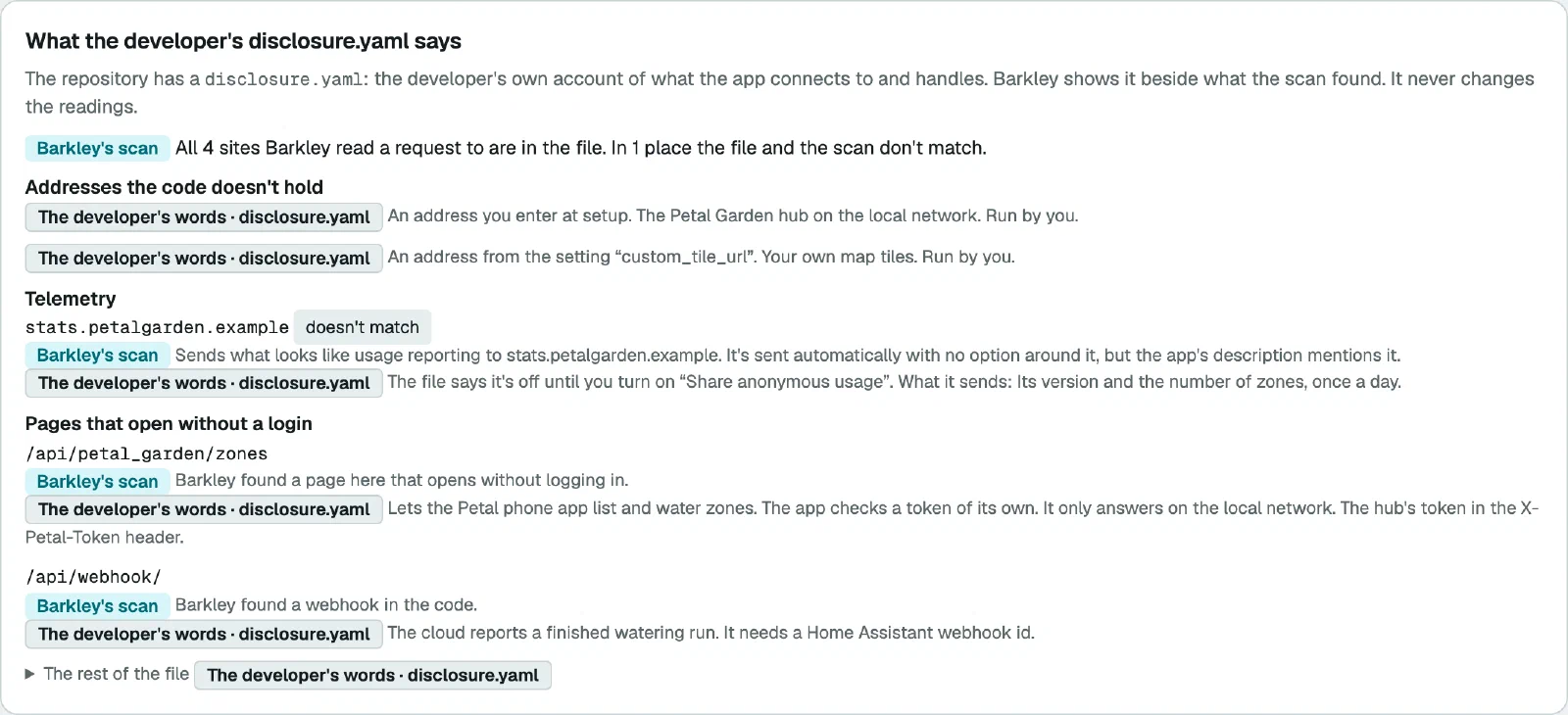
Petal Garden is a made-up app from Barkley’s tests. Its file is the spec’s sample, and its code sends usage reporting the file says is off until you turn it on.
- Compared with the scan: the sites Barkley read a request to (each one says under Where it connects whether the file lists it, with the file’s reason), whether the file says a connection is encrypted, telemetry (the usage reporting Barkley traced, and whether it’s on out of the box), and pages that open without a login (the addresses Barkley found, and webhooks). Where the two differ, the page says they don’t match, and shows what the scan found and what the file says. A difference isn’t a sign of bad intent: often the developer didn’t know.
- In the file, but not in the code: a site the file lists that the code never names. The app may still work out that address while it runs.
- Shown as the developer’s words only: addresses you enter at setup or set in a setting, and the other sections (credentials, login tokens, what it uses in Home Assistant, keys, encoded content, compiled code, downloads, files it writes).
- A section the file leaves out isn’t compared. An empty list in the file means “none”.
- Barkley reads only a file that follows version 1 of the spec, up to 64 KB. It refuses YAML anchors, aliases and tags, and anything that isn’t a plain file. When it doesn’t use a file, the page says why.
- On a page with a found threat, the developer’s words aren’t shown.
Where its code comes from
None of this is scored.
- The project and this release: what the Marketplace installs (a file attached to the release, the code at the release’s tag, or the newest code when there is no release), the project’s name on GitHub, whether it’s under one person’s account or an organization’s and when it was created, earlier names, who published this release and when, how many releases the project has and who published them, and how this version’s commit is signed: made on github.com and signed by GitHub, signed with the developer’s own key, not signed (common, and it says nothing bad on its own), or with a signature GitHub couldn’t verify.
- Python packages (integrations): every package Home Assistant would install for the app. The ones the app asks for come first; the rest come along with those. Each line has the version and whether Home Assistant already ships it.
- npm packages it is built from (cards): what the card’s
package.jsonlists, with the versions it accepts. - Published libraries it ships: files that are exact copies of files npm packages publish. A recognized library says not read (well known: at least a month old, at least 10,000 downloads a week, no malware warning; it’s checked for known security problems instead) or read as code, with the reason. A line under them counts the large files that matched nothing.
- Code it gets while it runs: packages the app installs or code it loads after it’s installed. Barkley can only read the code in the release and never sees code that arrives later. For an integration that runs Lua code through the lupa package, it says where the Lua comes from (downloaded while it runs and from where, shipped in the release, packed in its code, or a file Barkley couldn’t follow) and whether that Lua can use Python or run programs.
On a phone
On a screen 600 px wide or narrower, such as the Home Assistant app on a phone, an app’s page is shorter. It shows the two readings, the Threat and Exposure boxes, In short, and every item that counts toward a reading. An item that counts toward Threat or Exposure is never left out. A box at the bottom lists the rest of the page, and Show details shows it, including the AI buttons. Hide details at the top goes back to the short page. A wider screen always shows the whole page.
Actions on the page
- Sniff this version again runs a fresh scan instead of reusing the stored one.
- Other versions lists the 10 newest releases, betas included.
- Check advisories again: see Advisory re-checks.
- Explain this app and, in the Explain and read code mode, Explain in context: see AI explanations.
“Unfinished”
A scan is unfinished when something that may work next time went wrong, such as a tool timing out or a service that couldn’t be reached. The page says which part didn’t finish, Threat reads “None found so far” when nothing was found, the scan is never reused, and the page offers Sniff again. A file Barkley’s code rules can’t read at all is different. That happens on every sniff, so the file is listed in a finished scan under “What Barkley couldn’t read”.